

How to Overlay Video on Video
Video overlay is a popular format for educational videos, for example, with a "talking head" of a lecturer in the corner and the training content on the "main" screen.


In short, you can quickly overlay video on video by using a powerful tool — Clideo Online Video Editor — which lets you upload multiple clips, resize, position, and layer them with just a few clicks. This process requires no software installation, as you can work directly in your browser.
Overlaying videos is a useful video editing technique commonly used in educational videos, tutorials, marketing content, and social media posts. It helps creators highlight key points, add context, or show multiple perspectives within a single frame. With the right overlay video editor, you can create videos that capture your audience's attention and deliver clear, engaging content.
What is video overlay and why use it
Video overlay is a video editing technique where one video, image, or graphic is layered on top of another to add visual interest, context, or information. Also called compositing, it involves stacking multiple clips or graphical elements, so they play at the same time. For example, a small video of a lecturer speaking can appear in the corner of a tutorial video, while the main video shows instructional content. This technique is also used to add logos, subtitles, animations, or graphics to videos.
Types of overlays
Your videos can be transformed into something stylish, informative, and interactive with the help of various types of video overlays.
- Aesthetic overlays are used to apply a particular style to your video without making any changes to the content. Some examples include film grain, light leaks, dust particles, smoke effects, glitch art, and retro VHS footage. They add atmosphere and mood to the main clip, keeping it intact.
- Functional overlays are about improving communication and clarity. These include picture-in-picture windows, logos, watermarks, and captions. These overlays give context, strengthen the video branding, and highlight the key messages, without the need to re-record or reshoot the original video.
- Interactive overlays create interactive experiences with hotspots, buttons, and images. People can interact with the video by jumping to URLs, navigating to other scenes, visiting product pages, and submitting responses. Such overlays can be used to engage the viewer directly within the video, which is a great way to ensure conversion.
Each overlay type can be used for different purposes, including aesthetics, function, and interaction, and can be used to enhance your content. Next, we will describe how to create one of the most common functional overlays — picture-in-picture video, which is especially useful in educational videos.
How to put a video on top of another video using Clideo
Video overlay is a popular technique used for educational videos — for example, showing a lecturer's "talking head" in the corner while the training content plays on the main screen. Let's see how to use Clideo to create such a video.
Upload both videos to the tool
Open Clideo's Video Editor in any browser, hit the "Get started" button to go to the editor. The tool works directly in any modern browser on Mac, Windows, iOS, and Android.
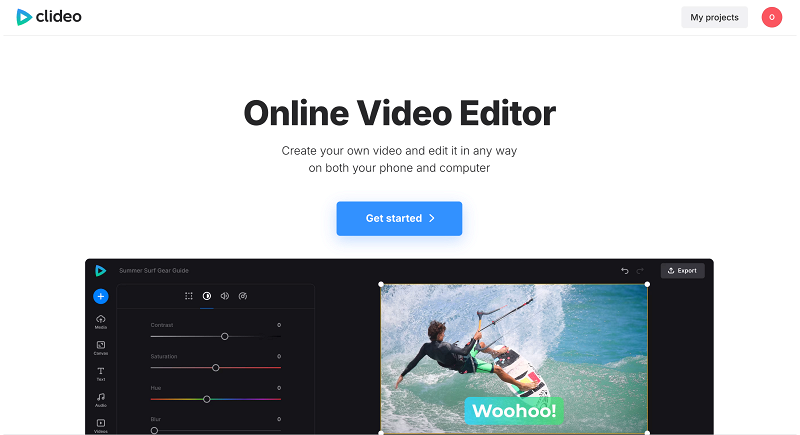
Then, upload your video files from your device, Google Drive, or Dropbox. You can even record yourself and your screen in the same tool if you need to present while explaining it. There are also free extensive libraries with stock video clips, images, stickers, GIFs, and other elements that you can use in your projects.
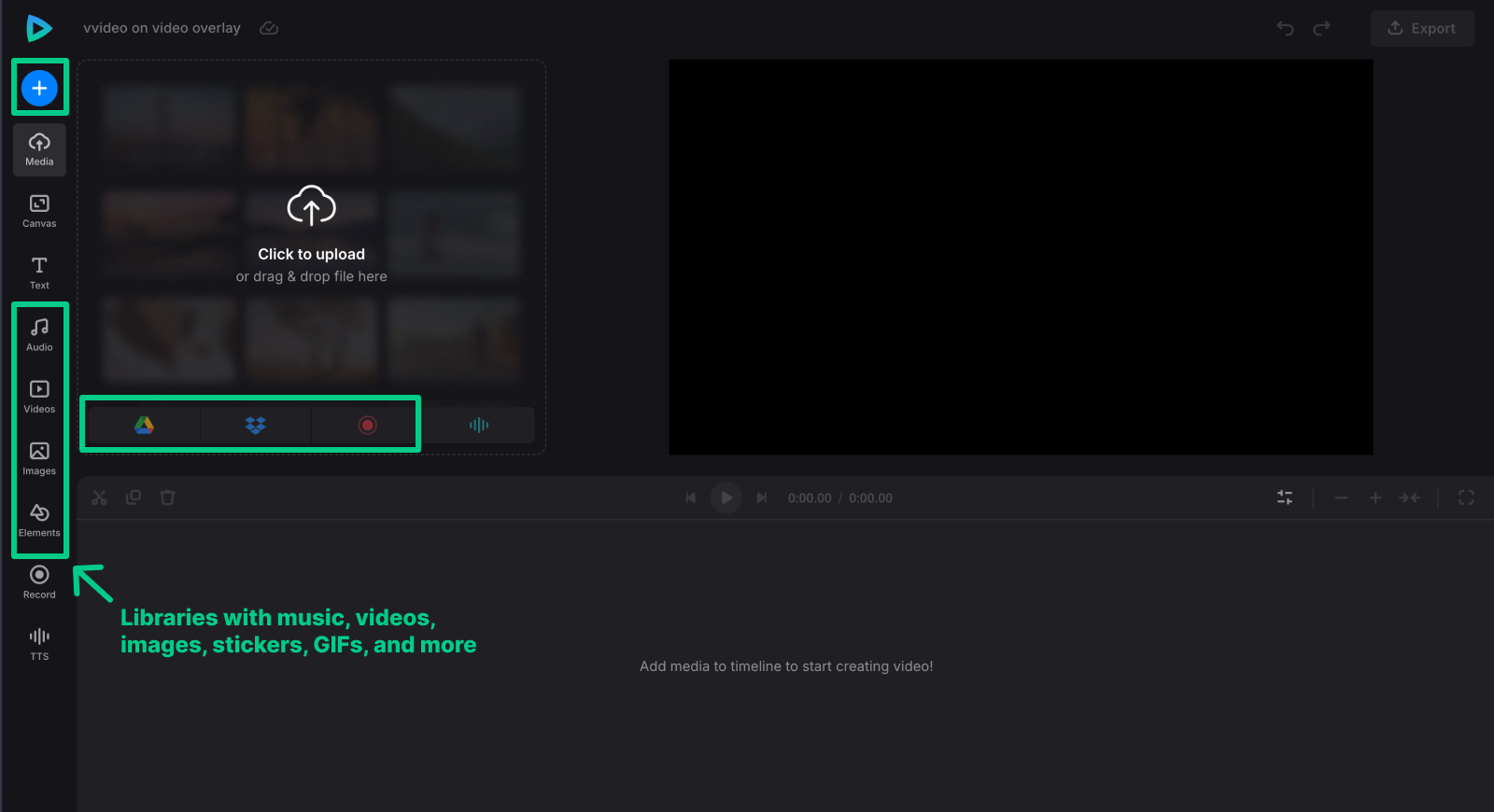
To start the project, make sure all your files are in the timeline (drag them from the "Media" section to the preview canvas and/or the timeline). If you need your video to have a specific size, go to the "Canvas" tab and set the project's aspect ratio. For social media posts, refer to this guide to check their aspect ratio requirements.
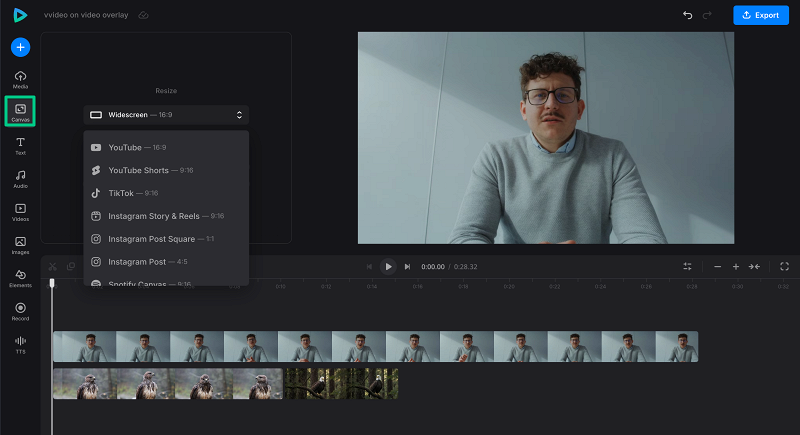
Put one video over another one
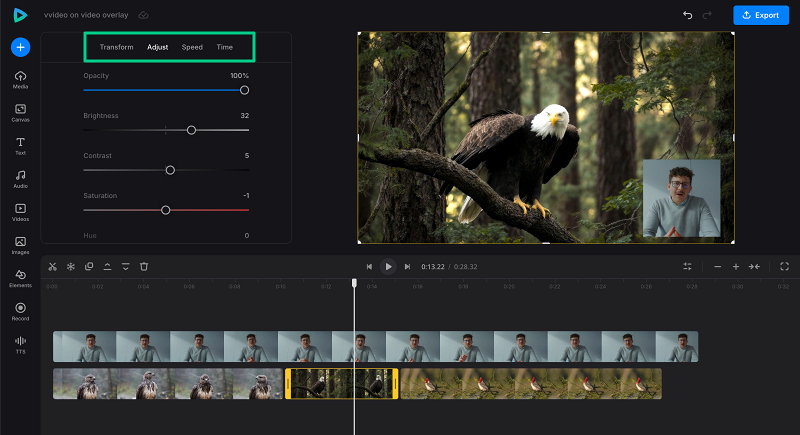
To have one video over another, make sure the top video is above the other elements in the timeline. Then you can easily crop and resize the video, which should be superimposed by dragging its corner. Adjust size and position so both layers fit cleanly within the frame.
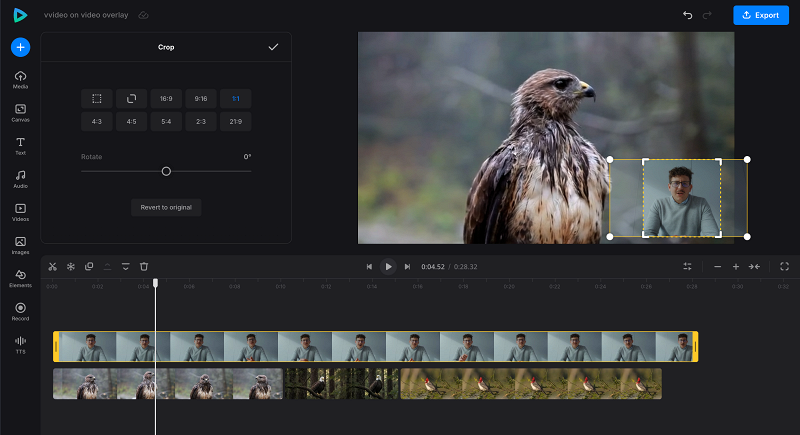
You can also edit the file on the timeline by trimming, duplicating, or cropping. Select a video and change its speed, adjust brightness or volume, etc.
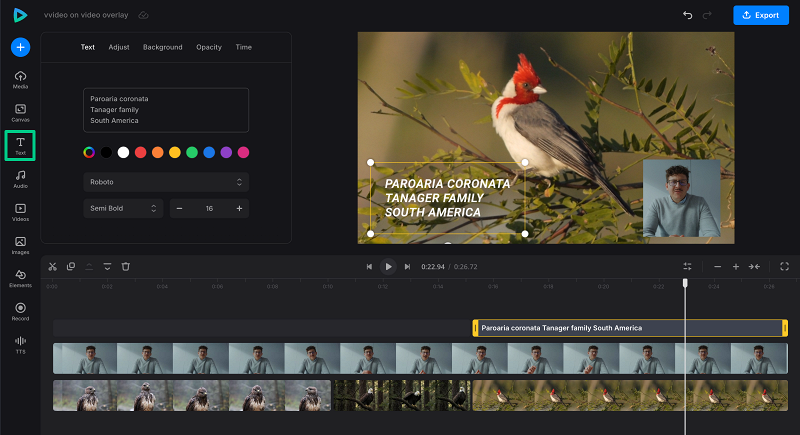
You can also create a text overlay on the video: go to the "Text" tab, choose the style you need, then enter the text and customize it as you like — change font, size, color, and add a text background if needed.
Save the project
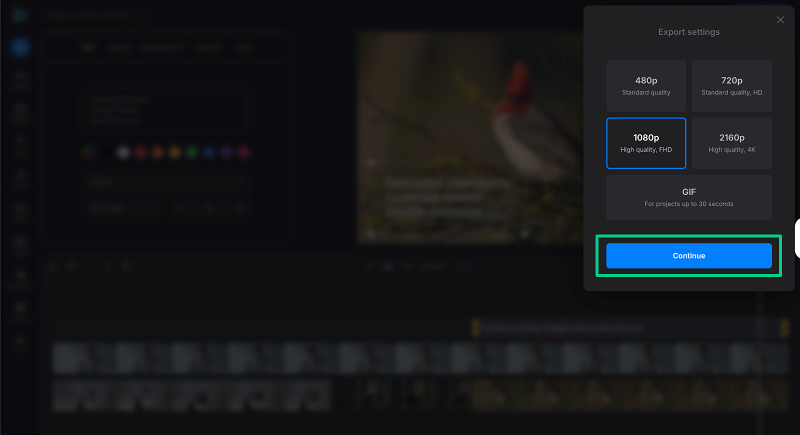
When you like what you see, hit the"Export" button and choose the resolution. To get access to the highest resolutions and get rid of the watermark on the video, upgrade your account to the Clideo Pro.
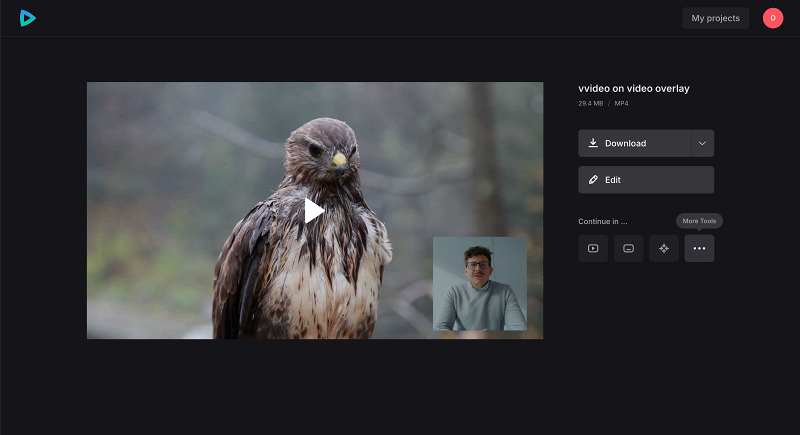
When the file is processed, save it to your device or cloud storage account.
Other ways to overlay video on video
If you want to try out other ways to overlay video on video, here are some alternatives that you can consider:
Using iMovie (Mac and iOS)
iMovie offers picture-in-picture and side-by-side overlay options, which let you overlay videos easily. The picture-in-picture option is especially useful for interviews, reaction videos, and tutorials.
Pros: Free for Apple users, easy to access on Mac and iOS, simple drag-and-drop editing, supports high-quality HD output.
Cons: Limited advanced features, only available on Mac and iOS devices.
Using Adobe Premiere Rush
Adobe Premiere Rush is a simplified version of Premiere Pro designed for quick video editing on desktop and mobile. It lets users add video overlays quickly and, in some cases, apply visuals with just one click.
Pros: Cross-platform, powerful editing tools, supports 4K exports.
Cons: Requires subscription after trial, steeper learning curve than simpler editors.
Tips for overlaying video on video effectively
Overlaying video on video can be straightforward, but some practical tips can help you create more engaging content:
- Adjust the size and position of the overlay video carefully to avoid covering important parts of the base video.
- Incorporate image overlays or text captions to add context or highlight key points.
- Add background music or audio overlays thoughtfully to enhance the mood without overpowering the original audio.
- Use transitions and fade effects to make the overlay appear and disappear smoothly, adding polish to your video.
- Keep your video quality high by choosing the appropriate resolution when exporting, especially if you want to download high-quality HD or 4K files.
- Preview your project on different devices to ensure the overlay looks good on mobile, desktop, and social platforms like YouTube.
With these tips, your video overlays will add depth and clarity to your content, helping you hold your audience's attention. Remember, even the best overlay can't fix a boring video, so make sure your base video is interesting too!
An overlay in video editing is a visual element placed on top of a base video to add information, branding, or artistic effects. Common overlays include text, images, logos, subtitles, and additional videos.
Yes. Online video editors like Clideo let you overlay videos directly in your browser without installing software, making it easy to create engaging content on any device.
Most video editors let you drag the corners of the overlay video to resize it and move it around the canvas to position it where you want, such as a corner or the center of the main video.
Yes. You can add background music or audio tracks in many video editors alongside video overlays to enhance the mood and engagement of your video content.
Common video formats like MP4, MOV, AVI, and WMV are widely supported by online video editors for overlaying multiple clips and exporting in high-quality HD or 4K.